1. Get the Starter+ plan
The Starter+ plan from $25/mo includes everything you need to launch the bot.
2. Copy the template and book a setup call
A BuddyBot manager will configure the scenario for your club and event schedule.
3. Prepare your events spreadsheet
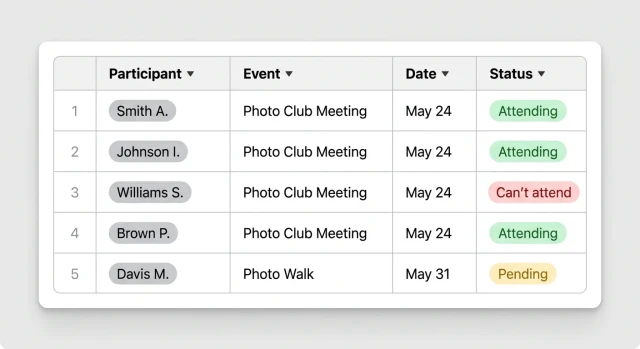
Fill in dates, event names, time and location — the bot will start sending reminders automatically.
4. Add the bot to your Slack channel
Install the BuddyBot app in Slack and add the bot to the channel. Your manager will send setup instructions.
5. Done — the bot reminds on its own
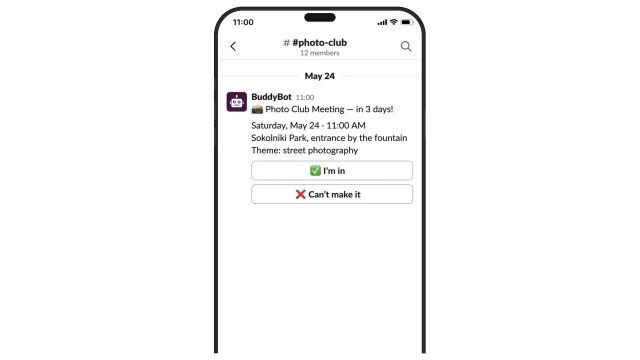
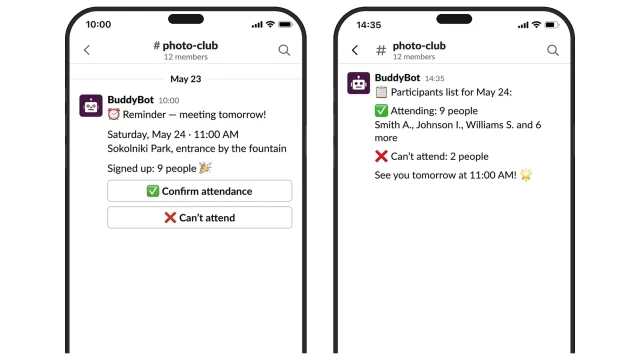
At the right time the bot posts notifications to the channel, collects responses and publishes the final list. Works from day one.
📊 Excel export — event history and attendance records for reporting
📅 Google Calendar — dates flow automatically from your calendar into the spreadsheet
📩 Personal reminders — the bot sends each member a duplicate DM notification
📸 Photo recap — the bot collects photos after the event and posts them to the channel
Does the bot work only in Slack or other messengers too?
This template is configured for Slack. For MAX or Telegram — there are separate templates in the BuddyBot marketplace.
Can I set reminders for a different number of days — not 3-2-1?
Yes — any number of days can be configured in the script settings. For example, 7 days and 1 day before.
How many events can I add to the spreadsheet?
Unlimited — the bot processes any number of rows in the spreadsheet.
Do I need admin rights in the Slack channel?
No — just add the bot to the channel as a regular member. Admin rights are not required.
What if a member clicked "Can't make it" but then changed their mind?
The bot will update the status in the spreadsheet — the last button tap is treated as current.
Does the bot send reminders at a specific time?
The reminder time is set in the script settings — for example, at 10:00 AM three days before the event.
Can I add an event at the last minute?
Yes — just add a row to the spreadsheet. The bot will pick up the new entry at the next schedule check.
Can the bot work in multiple channels at once?
Yes — one bot can work in multiple Slack channels. Each channel has its own ID in the spreadsheet.
Can I cancel an event and notify members?
Yes — add a "Cancelled" status to the spreadsheet row and the bot will post a cancellation message to the channel.
How does the organizer add an event — is technical access needed?
No — the organizer fills in a regular Google spreadsheet: date, name, location. No technical knowledge required.
 Talpha